Introduction: Why “Canva vs Photoshop” Is Still a Hot Topic in
The rise of digital marketing, social media branding, and AI-powered design tools has made graphic design more accessible than ever. Among hundreds of tools available today, Canva and Adobe Photoshop continue to dominate the conversation.
Search queries like “Canva vs Photoshop”, “Canva for beginners”, “Photoshop pricing”, and “best design tool for social media” consistently show high intent. The reason is simple: people want fast results without sacrificing quality.
This guide answers every important question:
- What is the real difference between Canva and Photoshop?
- Which tool is best for beginners, businesses, and professionals?
- Pricing comparison and ROI
- Real-world case studies
- Step-by-step learning paths (beginner → advanced)
- SEO-ready structure for ranking in Google
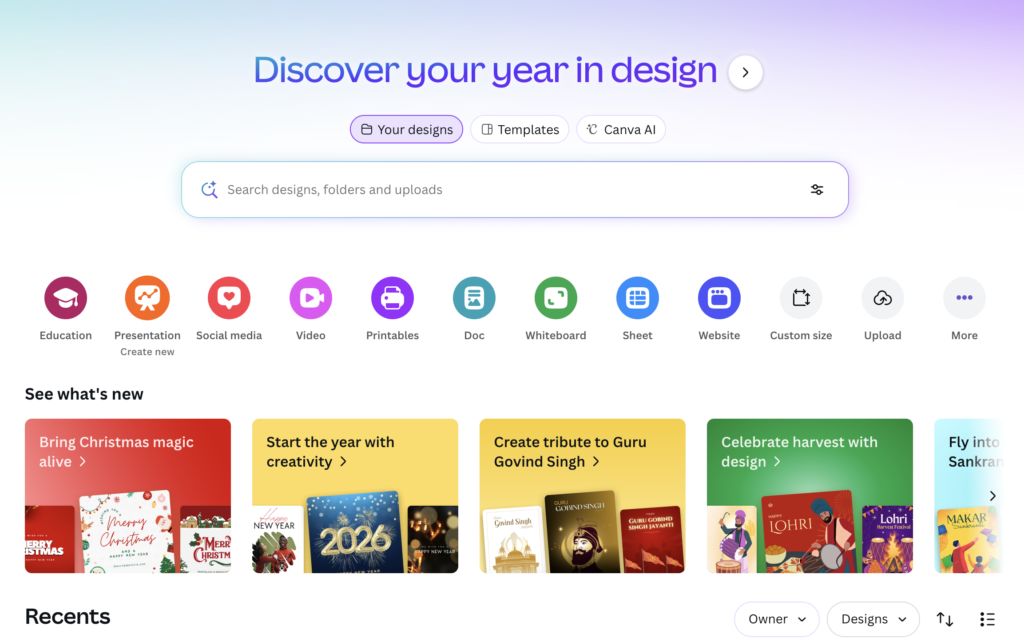
In Short Canva offers a huge range of templates to get you started. It also features a comprehensive library of royalty-free stock videos that small businesses will find useful.
It is browser-based, meaning it only requires an Internet connection to use. And it can be run on a low-end Mac or PC.
| Feature | Canva | Photoshop |
|---|---|---|
| Ease of Use | ⭐⭐⭐⭐⭐ Very easy (drag & drop) | ⭐⭐ Steep learning curve |
| Best For | Social media posts, flyers, presentations, quick designs | Professional photo editing, complex graphics |
| Skill Level | Beginners & non-designers | Designers & professionals |
| Templates | Thousands of ready-made templates | Very limited |
| Customization | Limited but fast | Unlimited & detailed |
| Photo Editing | Basic (filters, crop, background remove) | Advanced (retouching, masking, compositing) |
| Branding | Brand kits, quick consistency | Full control but manual |
| Speed | Very fast | Slower but precise |
| Pricing | Free + affordable Pro | Paid (Adobe subscription) |
| Online/Offline | Mostly online | Desktop-based (offline) |
Basic Comparison Canva vs Photoshop
Canva and Photoshop both provide users with a huge range of features, but their strengths differ according to the tools’ target audiences and design requirements. Canva is a better choice for non-designers and small businesses seeking quick, accessible and user-friendly designs based on simplified guidelines or templates, whereas Adobe Photoshop remains the clear leader for professional visual creatives who require advanced editing and design control.
Canva’s text styling options are limited but still ample, while Photoshop offers a vast set of font-pairing combinations that let even relatively inexperienced designers create sophisticated typography effects like drop shadow, rounded text and hollow text. Photoshop also gives its subscribers a more extensive range of export options, enabling them to specify precise settings for image file compression, bit depth and metadata.
Both Canva and Photoshop offer mobile apps that allow users to access their key editing and library features on the go. Canva’s mobile app is more feature-rich than the Photoshop one, but both rank highly in their respective Apple and Google App Store/Play Store ratings.
Canva vs Photoshop: Core Philosophy Comparison
Canva’s Design Philosophy
Key points:
- Speed over complexity
- Templates over manual design
- Accessibility for non-designers
Canva was built to remove the learning barrier. It assumes users are marketers, business owners, or creators, not trained designers. Everything is optimized for quick turnaround and consistency.
From social media posts to pitch decks, Canva allows users to design visually appealing assets in minutes instead of hours.
Photoshop’s Design Philosophy
Key points:
- Full creative control
- Precision and accuracy
- Professional-level output
Photoshop was designed for artists, photographers, and designers who need pixel-level control. There are no shortcuts through templates. Instead, Photoshop gives you raw power — layers, masks, blend modes, and advanced color management.
This difference in philosophy explains why Canva feels easy and Photoshop feels overwhelming at first.
Feature-by-Feature Comparison (Detailed)
1. Ease of Use & User Interface
Canva
- Drag-and-drop editor
- Minimal learning curve
- Beginner-friendly interface
Canva’s interface is intuitive. You don’t need to understand layers, DPI, or color modes to get results. This is why Canva is popular among social media managers and startups.
Photoshop
- Tool-heavy interface
- Requires understanding of layers and workflows
- Steep learning curve
Photoshop demands time. Beginners often feel lost, but once learned, it unlocks unlimited creative freedom.
SEO insight:
People searching “Canva vs Photoshop for beginners” usually prefer Canva.
2. Design Capabilities & Creative Freedom
Canva capabilities
- Social media graphics
- Presentations
- Marketing banners/ poster designing
- Basic photo editing
- Brand kits
Canva shines in layout-based design. It’s excellent for repetitive marketing content but limited for deep customization.
Photoshop capabilities
- Advanced photo retouching
- Image compositing
- Digital art
- Print-ready graphics
- High-resolution exports
Photoshop is unmatched for professional photo editing software needs.
3. Templates vs Custom Design
Canva
- Thousands of templates
- Pre-sized designs for all platforms
- Faster production
Templates make Canva ideal for:
- Instagram & Facebook posts
- LinkedIn carousels
- Ads & thumbnails
Photoshop
- No reliance on templates
- Fully custom designs
Photoshop is better when originality matters more than speed.
Pricing Comparison: Canva vs Photoshop (2026)
Canva Pricing
Plans:
- Free plan (basic features)
- Canva Pro (monthly/yearly)
- Canva Teams
Advantages:
- Affordable for freelancers
- Free plan is usable
- Pro unlocks background remover & premium assets
Canva is cost-effective, especially for small businesses and agencies.
Both Canva and Photoshop are’software as a service’ tools that require subscription payments in order to use. There are various paid plans on offer, from the free version through to Canva Pro and Canva Business (with a 16% discount available if you pay annually).
Both platforms now have a range of AI-powered image generation and editing features. For example, Photoshop offers ‘generative expand’ and ‘autofill’ tools, while Canva recently launched a set of ‘Magic Studio’ features that make it easy to do things like create video content and expand text via’magic cut’.
Both platforms have a wide selection of ready-made templates for a variety of designs, from infographics to social media posts to website banners. However, Canva goes a step further by providing an impressive website builder that lets users host websites on their own Canva URL or map them to a domain that they already own. Canva also offers a range of other useful tools, such as a content planner, a ‘Magic Write’ word processing tool and a translation tool that can translate text into more than 100 languages.
Photoshop Pricing
Plans:
- Photoshop Single App (subscription)
- Adobe Creative Cloud (bundle)
Advantages:
- Industry-standard tools
- Advanced AI features (Generative Fill)
- Professional output quality
Photoshop costs more but delivers unmatched value for professionals.
SEO takeaway:
“Canva pricing” attracts beginners.
“Photoshop pricing” attracts professionals with buying intent.
Real-World Case Studies (Expanded)
Case Study 1: Social Media Marketing Agency
Problem:
Daily content creation for 10+ clients was time-consuming.
Solution:
- Canva used for templates & scheduling
- Photoshop used for hero images and ad creatives
Result:
- 60% faster content production
- Consistent branding
- Higher engagement rates
Lesson:
Use Canva for scale, Photoshop for impact.
Case Study 2: E-commerce Product Brand
Problem:
Product images looked amateur.
Solution:
- Photoshop used for product retouching
- Canva used for promotional banners and ads
Result:
- Higher conversion rate
- Better brand perception
Case Study 3: Freelancer (Beginner to Pro)
Journey:
- Started with Canva (0 design background)
- Learned layout & branding basics
- Transitioned to Photoshop after 6 months
Outcome:
- Higher-paying clients
- Ability to offer premium design services
Which is best and why? Canva vs Photoshop
Canva and Photoshop are two industry-standard design apps that both offer a lot of features to create social content, posters and presentations. However, Canva is the winner for creators who want to simplify their creation process with a user-friendly interface and an extensive selection of ready-made layouts.
On the other hand, Photoshop is a must-have tool for professional graphic designers, visual artists and photographers who require high-precision and full control over image editing and manipulation. Both programs have advanced ‘layering’,’scaling’ and ‘cropping’ tools, and they also support a wide range of image file formats.
Similarly, both platforms have recently introduced a range of AI-powered image generation and editing features. For example, Canva offers a simple way to expand and blur photos with its ‘generative expand’ tools; while Photoshop’s ‘autofill’ feature makes it easy to remove or replace objects within images.
Canva is an online graphic design tool that makes it easy for small businesses and other non-designers to create social media posts, presentations, fliers and invitations without needing advanced design skills. It offers a wide range of templates, fonts and design elements, a free video editor and five gigabytes of cloud storage for creating and storing designs.
Both Photoshop and Canva enjoy high customer ratings and positive feedback on the quality of their applications. However, Canva is a more complete application in that it offers a wider range of non-design features to cater for the needs of small businesses and other users who don’t require extensive image manipulation capabilities.
For example, Canva’s’restore brush’ feature is useful for fine-tuning images after they have been cut out, while Photoshop does not have a similar option. Also, Canva has a ‘designs and photos’ tab that provides access to the full range of its royalty-free stock images and other multimedia items, which is very helpful for users looking to create visually engaging designs quickly and easily. Lastly, Canva offers a more intuitive search function for finding apps within its application (the Adobe Exchange Marketplace only provides a general search box). This makes it much easier to find specific apps that are relevant to particular design projects.
Which Tool Is Best for Beginners?
Canva for Beginners
Why Canva is ideal:
- No design knowledge needed
- Immediate results
- Faster confidence-building
Beginners searching “Canva for beginners” want quick wins — Canva delivers.
Photoshop for Beginners (Long-Term View)
Photoshop is not beginner-friendly, but:
- It offers higher earning potential
- Essential for professional designers
- Worth learning after Canva basics
Best strategy:
Start with Canva → move to Photoshop.
For users with little to no design experience, Canva is a good choice thanks to its gentle learning curve and a wide range of accessible features. These include templates, a giant library of visual elements and stock photography, and an easy-to-use drag-and-drop editor.
Another area in which Canva excels is in enabling users to create websites. It provides a basic website builder as well as a huge range of simple text effects like drop shadow, curved text and outline. Photoshop, meanwhile, is better at removing objects from photos by offering a range of editing tools such as content aware fill and selection & masking.
The other advantage of Canva is that it allows users to make videos directly within the platform using a pre-made template. This isn’t something you can do in Photoshop (although it can be done via a third-party video-making tool) and it’s a big plus for small businesses that are short on time and budget.
Expanded Learning Curriculum (Step-by-Step)
Canva Learning Path (Beginner → Advanced)
Stage 1: Basics (Week 1)
- Templates
- Text alignment
- Image replacement
Stage 2: Branding (Weeks 2–3)
- Brand kits
- Color psychology
- Font pairing
Stage 3: Advanced Canva (Month 1)
- Background remover
- Animations
- Content planner
Stage 4: Professional Canva Use
- Client templates
- Team collaboration
- Design systems
Photoshop Learning Path (Beginner → Pro)
Stage 1: Foundation (Month 1)
- Interface
- Layers
- Selections
Stage 2: Core Skills (Months 2–3)
- Masking
- Retouching
- Smart Objects
Stage 3: Advanced Editing (Months 4–6)
- Compositing
- Color grading
- Advanced typography
Stage 4: Professional Mastery
- Print workflows
- Client-ready PSDs
- Automation & plugins
Canva vs Photoshop for SEO & Marketing
Canva
- Faster content creation
- Ideal for blogs, social posts, thumbnails
Photoshop
- Better for brand authority visuals
- Higher-quality hero images
SEO tip:
Use Canva for volume, Photoshop for quality.
Pros & Cons Summary
Canva Pros
- Easy
- Affordable
- Fast
- Team-friendly
Canva Cons
- Limited advanced editing
- Designs can look generic
Photoshop Pros
- Unlimited creativity
- Professional output
- Industry standard
Photoshop Cons
- Steep learning curve
- Higher cost
The Role of AI in Canva and Photoshop: Present Capabilities and the Future of Design
Artificial Intelligence is no longer an optional feature in design tools—it has become the backbone of modern creative workflows. Both Canva and Adobe Photoshop are heavily investing in AI to reduce manual effort, improve speed, and empower non-designers and professionals alike.
However, the way AI is implemented in Canva and Photoshop is fundamentally different, reflecting their core philosophies.
Canva AI vs Photoshop AI: Strategic Difference
Canva AI Strategy
- Automate creativity
- Reduce the learning curve
- Replace basic design tasks
- Target non-designers and marketers
Canva’s AI answers the question:
“How can anyone design quickly?”
Photoshop AI Strategy
- Enhance human creativity
- Speed up professional workflows
- Preserve creative control
- Target designers and photographers
Photoshop’s AI answers the question:
“How can professionals work faster without losing quality?
Future of Canva with AI (2025–2030)
Expected AI Developments in Canva
- Full text-to-design websites
- AI-generated brand kits
- Predictive content suggestions
- One-click campaign creation
- AI-driven social media calendars
In the future, Canva will evolve into a complete AI marketing platform, not just a design tool. Businesses may input:
“Create a 7-day Instagram campaign for a fitness brand”
…and Canva’s AI will generate visuals, captions, colors, and formats automatically.
SEO Impact
This will increase searches like:
- AI graphic design tools
- Canva AI marketing
- No-code design platforms
Future of Photoshop with AI (2025–2030)
Expected AI Developments in Photoshop
- Context-aware editing
- Real-time AI retouching
- AI-assisted brand consistency
- Smart object behavior prediction
- Deeper AI + 3D integration
Photoshop will remain the industry standard for high-end creative work. AI will reduce production time but not replace skilled designers.
Instead, designers who understand AI-assisted Photoshop workflows will:
- Deliver faster
- Charge higher rates
- Handle more complex projects
Will AI Replace Designers?
Short Answer: No — But It Will Replace Manual Work
- Canva AI replaces simple design labor
- Photoshop AI replaces technical repetition
- Creativity, strategy, and brand thinking remain human skills
Designers who refuse AI will struggle. Designers who master AI tools will dominate.
Final Verdict: Canva vs Photoshop
Choose Canva if:
- You are a beginner
- You need fast social media content
- You manage marketing campaigns
Choose Photoshop if:
- You are a designer or photographer
- You need advanced photo editing
- You work on branding or print
Best choice in 2026:
👉 Use both for maximum efficiency.
Explore our work to see what we create. If you’re looking for reliable and creative design services, contact us today.



Canva vs Photoshop, Canva vs Photoshop, Canva vs Photoshop, Canva vs Photoshop, Canva vs Photoshop, Canva vs Photoshop, Canva vs Photoshop, Canva vs Photoshop, Canva vs Photoshop, Canva vs Photoshop, Canva vs Photoshop, Canva vs Photoshop, Canva vs Photoshop, Canva vs Photoshop, Canva vs Photoshop, Canva vs Photoshop, Canva vs Photoshop