Migrating or restoring a WordPress website often involves dealing with backup files. If you’ve used All-in-One WP Migration, you’ve probably come across a .wpress file.
Many users get stuck at one point:
“How do I extract a
.wpressfile on Mac?”
This guide explains everything you need to know, including why normal unzip tools don’t work, and two proven methods to extract .wpress files on macOS, step by step.
What Is a .wpress File?
A .wpress file is a proprietary backup format created by the All-in-One WP Migration plugin.
It contains:
- WordPress database
wp-contentfolder- Themes & plugins
- Media uploads
- Site configuration
❌ It is NOT a ZIP, TAR, or RAR archive
❌ It cannot be extracted using Finder, Archive Utility, or unzip tools
Official Way vs Manual Extraction
✅ Official & Recommended Way
- Import the
.wpressfile directly into WordPress using the plugin
🔧 Manual Extraction (Advanced)
- Required when:
- You don’t have WordPress access
- File size limit blocks import
- You only need database or uploads
- The site is broken
This blog focuses on manual extraction on macOS.
Method 1: Extract .wpress File Using Wpress-Extractor (macOS)
Step 1: Download Wpress-Extractor
Go to:
https://github.com/fifthsegment/Wpress-Extractor- Download the macOS binary (usually named
wpress-extractor) - Do not rename the file
Step 2: Put Files in One Folder
Ensure both files are in the same folder:
wpress-extractoryour-backup-file.wpress
backup-of-site/
 ├── wpress-extractor
└── site-backup.wpressStep 3: Open Terminal in That Folder
Finder → Right-click folder → New Terminal at Folder
Or manually:
cd ~/Downloads/backup-of-siteStep 4: Give Execute Permission
chmod +x wpress-extractorIf macOS blocks it:
xattr -d com.apple.quarantine wpress-extractorStep 5: Extract the .wpress File
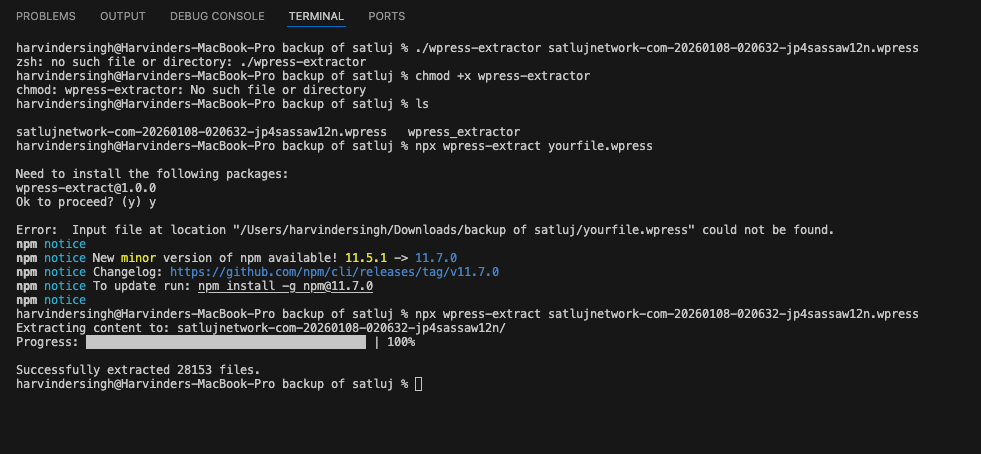
./wpress-extractor site-backup.wpress⏳ Extraction may take time depending on file size.
Step 6: Output After Extraction
You’ll get files like:
wp-content/themes/plugins/uploads/database.sql
You can now manually restore the site.
Method 2 (Recommended): Extract .wpress Using Node.js (npx)
This is the easiest and most reliable method on macOS.
Step 1: Install Node.js
Download from:
https://nodejs.orgInstall the LTS version.
Verify installation:
node -v
npx -vStep 2: Go to Folder Containing .wpress
cd ~/Downloads/backup-of-siteStep 3: Run the Extract Command
npx wpress-extract site-backup.wpress
✔ No manual binary download
✔ Works on macOS, Windows, Linux
✔ Auto-handles permissions
Step 4: Files After Extraction
Same output as Method 1:
- WordPress files
- Database SQL
- Media uploads
How to Use Extracted Files
Restore Manually:
- Install fresh WordPress
- Upload
wp-contentfolders - Import
database.sqlvia phpMyAdmin - Update
wp-config.php - Fix URLs if required
Common Errors & Fixes
❌ no such file or directory
✔ Run ls to confirm file names
✔ Ensure you are in the correct folder
❌ permission denied
chmod +x wpress-extractor❌ macOS security block
xattr -d com.apple.quarantine wpress-extractorWhat You Should NOT Do
❌ Double-click .wpress file
❌ Try to unzip it
❌ Upload and extract in cPanel
❌ Rename .wpress to .zip
It will never work.
Final Recommendation
| Method | Difficulty | Reliability |
|---|---|---|
| Plugin Import | Easy | ⭐⭐⭐⭐⭐ |
Node npx wpress-extract | Easy | ⭐⭐⭐⭐⭐ |
| Wpress-Extractor Binary | Medium | ⭐⭐⭐⭐ |
👉 Best choice on macOS: npx wpress-extract
Conclusion
A .wpress file is not broken — it’s just not a normal archive.
With the right tools, you can safely extract and restore your WordPress website on macOS.
If you follow the steps in this guide, you’ll be able to:
- Extract
.wpressfiles confidently - Recover database & uploads
- Manually migrate WordPress sites
What is a .wpress file?
A .wpress file is a WordPress backup file created by the All-in-One WP Migration plugin.
It contains the full website data, including the database, themes, plugins, media uploads, and site configuration.
Can I unzip a .wpress file on Mac?
No. A .wpress file is not a ZIP or TAR archive.
macOS tools like Finder, Archive Utility, or unzip cannot open or extract .wpress files
How do I extract a .wpress file on macOS?
You can extract a .wpress file on macOS using:
Wpress-Extractor (terminal-based tool)
Node.js method using:
npx wpress-extract yourfile.wpress
The Node method is the easiest and most reliable on Mac.
Do I need WordPress installed to extract a .wpress file?
No. Manual extraction tools allow you to extract .wpress files without installing WordPress.
However, to fully restore the site, you’ll eventually need a WordPress installation.
What files do I get after extracting a .wpress backup?
After extraction, you usually get:
– wp-content/ folder- themes/, plugins/, and uploads/
– Database file (.sql)
These files can be used for manual WordPress restoration.
Is Wpress-Extractor safe to use?
Yes, Wpress-Extractor is an open-source tool available on GitHub.
However, always:
– Download from the official repository
– Scan files if working with client data
– Avoid unknown third-party websites
Why does macOS say “permission denied” when running wpress-extractor?
macOS blocks unknown executables by default.
chmod +x wpress-extractor
xattr -d com.apple.quarantine wpress-extractor